


A custom Lovelace card for Home Assistant to display fuel prices from Tankerkönig sensors.
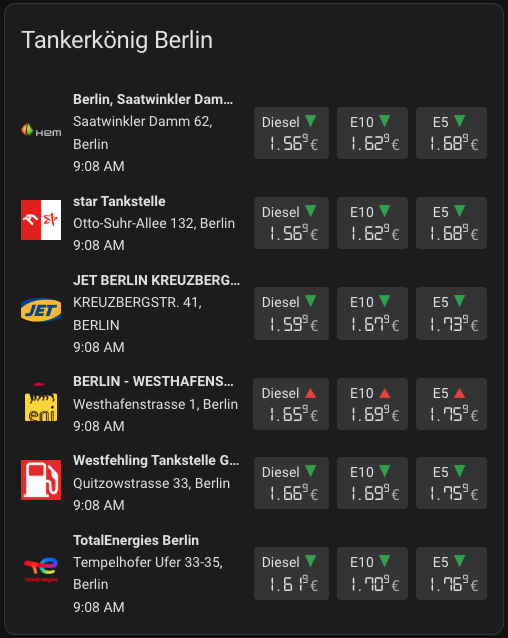
- Displays prices for multiple fuel stations from the Tankerkönig integration.
- Sort stations by price for a specific fuel type.
- Show only the X cheapest stations based on a selected fuel type.
- Show/hide station address (with clickable maps navigation link) and last updated timestamp.
- Customize the order of displayed fuel types.
- Show indicators for price increases or decreases.
- Hide stations that are currently closed.
- Fully customizable through the visual editor.
- Easy station selection using the visual editor.
- Intuitively reorder selected stations with visual drag-and-drop in the Customize tab.
- Overwrite default logos with custom image URLs.
The editor is available in the following languages:
- English
- German
- Ukrainian
Contributing Translations
If you would like to contribute a new translation:
- Fork the repository on GitHub.
- In the
src/translationdirectory, copyen.jsonand rename it to your language code (e.g.,fr.jsonfor French). - Translate all the values in the new file.
- Submit a pull request with your changes.
This card is available in the Home Assistant Community Store (HACS).

Manual Installation
- Download the
tankerkoenig-card.jsfile from the latest release. - Place it in your
config/wwwdirectory. - Add the resource reference to your Lovelace configuration under
Settings->Dashboards->...->Resources.- URL:
/local/tankerkoenig-card.js - Resource Type:
JavaScript Module
- URL:
You can now add the card to your dashboard.
The card automatically displays logos for many gas station brands. The logo is determined by the brand attribute of your sensor.
Some of the supported brands include:
- Access
- Agip eni
- Allguth
- Aral (incl. Jantzon)
- Avia (incl. Xpress)
- BayWa
- Bell Oil
- BFT
- Calpam
- citi oil
- Classic
- E-Center
- ED
- Edeka
- ELAN
- Esso
- Feneberg
- Flaeming Tank
- Globus
- Greenline
- HEM
- Hessol
- Hornbach
- Hoyer
- Jet
- Joiss
- K+K Klaas & Kock
- Minera / Minera Automatenstation
- MOL
- Mr.Wash
- MTB
- Mundorf Tank
- Nordoel
- OIL!
- OMV
- ORLEN / ORLEN Express
- PIN (incl. Service-Station)
- Q1
- Raiffeisen
- RAN
- SB-Tank
- Schillhorn
- Schindele
- SCORE
- Shell
- Spreves
- Sprint
- Star
- SVG
- Team
- Trigema
- Total
- Total Energies
- V-Markt
- Westfalen
If a logo for a specific brand is missing, the card will show a generic fallback logo. You can check the src/gasstation_logos directory for a full list of available logos.
If you are missing a logo, please open an issue and provide the brand name (entity attribute).
To achieve the digital clock-style font for the prices as seen in the screenshots, you need to add the stylesheet to your Lovelace resources.
- Copy the
stylesheet.cssfile from thedistfolder of this repository into yourconfig/www/community/lovelace-tankerkoenig-card/directory. - Add the stylesheet as a resource in Home Assistant under
Settings->Dashboards->⋮(top right) ->Resources.- URL:
/hacsfiles/lovelace-tankerkoenig-card/stylesheet.css - Resource Type:
Stylesheet (CSS)
- URL:
| Name | Type | Default | Description |
|---|---|---|---|
type |
string | Required | custom:tankerkoenig-card |
title |
string | (none) |
The title of the card. |
stations |
list (string or object) | Required | A list of device IDs. To set a custom name or logo, use an object: { device: '...', name: '...', logo: '...' }. |
show_street |
boolean | true |
Show the street and house number of the station. |
show_postcode |
boolean | true |
Show the postcode of the station. |
show_city |
boolean | true |
Show the city of the station. |
clickable_addresses |
boolean | false |
Make addresses clickable links that open in your preferred navigation / maps application. |
map_provider |
'google', 'apple', 'waze' | 'google' |
Used alongside clickable_addresses to choose which map app opens. |
show_last_updated |
boolean | false |
Show the last updated timestamp for the station. |
show_price_changes |
boolean | false |
Show an indicator for price increases or decreases. |
fuel_types |
list ('e5' | 'e10' | 'diesel') | ['diesel', 'e10', 'e5'] |
The order in which to display the fuel types. |
hide_unavailable_stations |
boolean | false |
Hide stations that are currently closed. |
sort_by |
'e5' | 'e10' | 'diesel' | 'none' | 'none' |
Sort stations by the price of the selected fuel type. |
show_only_cheapest |
boolean | false |
Show only the cheapest station(s). Requires sort_by to be set to a fuel type. |
show_only_cheapest_count |
number | 1 |
The number of cheapest stations to show when show_only_cheapest is enabled. |
show_prices_side_by_side |
boolean | false |
Force prices to be displayed side-by-side on mobile devices. |
price_bg_color |
string | var(--divider-color) |
The background color of the price display. |
price_font_color |
string | var(--primary-text-color) |
The font color of the price display. |
font_scale |
number | 100 |
A percentage to scale the font size of the price and fuel type (e.g., 80 for 80%). |
| Name | Type | Required | Description |
|---|---|---|---|
device |
string | Required | The device ID of the Tankerkönig station. |
name |
string | (none) |
A custom name to overwrite the default station name. |
logo |
string | (none) |
A URL to a custom logo for the station. |
type: custom:tankerkoenig-card
title: Fuel Prices
show_street: true
show_postcode: true
show_city: true
show_last_updated: true
show_price_changes: true
sort_by: e10
show_only_cheapest: true
show_only_cheapest_count: 3
fuel_types:
  - e10
  - e5
  - diesel
stations:
  # Station with default logo
  - 2bf48bbf7b0c6a5d40ac7c0dfa2c4178
  # Station with custom logo
  - device: 99a4943a53c159a2995573795447463d
    logo: /local/my-custom-logo.png
  # Station with custom name
  - device: 99a4943a53c159a2995573795447463d
name: My Favorite StationTo contribute to the development, you'll need to set up a build environment.
-
Clone the repository:
git clone https://github.com/timmaurice/lovelace-tankerkoenig-card.git cd lovelace-tankerkoenig-card -
Install dependencies:
npm install
-
Start the development server: This command will build for changes in the
srcdirectory and rebuild the card.npm run build
-
In your Home Assistant instance, you will need to configure Lovelace to use the local development version of the card from
dist/tankerkoenig-card.js.
To test your compiled card locally without modifying your production Home Assistant setup:
- Build the card with
npm run buildor keep it auto-compiling usingnpm run watch. - Run
npm run docker:startto spin up a local Home Assistant container. - Access Home Assistant at http://localhost:8123 and complete the onboarding process.
- Navigate to Settings -> Dashboards -> ⋮ (top right) -> Resources.
- Add the url
/local/tankerkoenig-card/tankerkoenig-card.jswith the Resource TypeJavaScript Module. - Add the official Tankerkönig integration in Home Assistant so you have dummy sensors to test with.
- Add the custom card in your local dashboard to verify your changes!
When you're done, you can clean up the environment by running npm run docker:stop. Note that your configuration will persist in the test/ha-config folder.
For further assistance or to report issues, please visit the GitHub repository.


