Admin Manual
This guide covers day-to-day administration through the AVideo interface. Server installation, Linux commands, database work, and web-server configuration are separate advanced tasks.
Menu names can vary by theme, screen size, AVideo version, permissions, and enabled plugins.
An administrator can affect users, content, privacy, plugins, payments, storage, and site availability. Use a separate normal user account for testing what visitors see, and do not share an administrator account between people.
Before major changes:
- Record the current setting.
- Make a current backup when data or availability is at risk.
- Change one thing at a time.
- Test while signed out or as a normal user.
- Check logs if the expected result does not occur.
- Sign in with an administrator account.
- Open the profile/user menu.
- Select Admin, Administration, or the gear icon.
If the administration entry is missing, verify the account's admin status with another administrator. A successful login alone does not grant admin access.
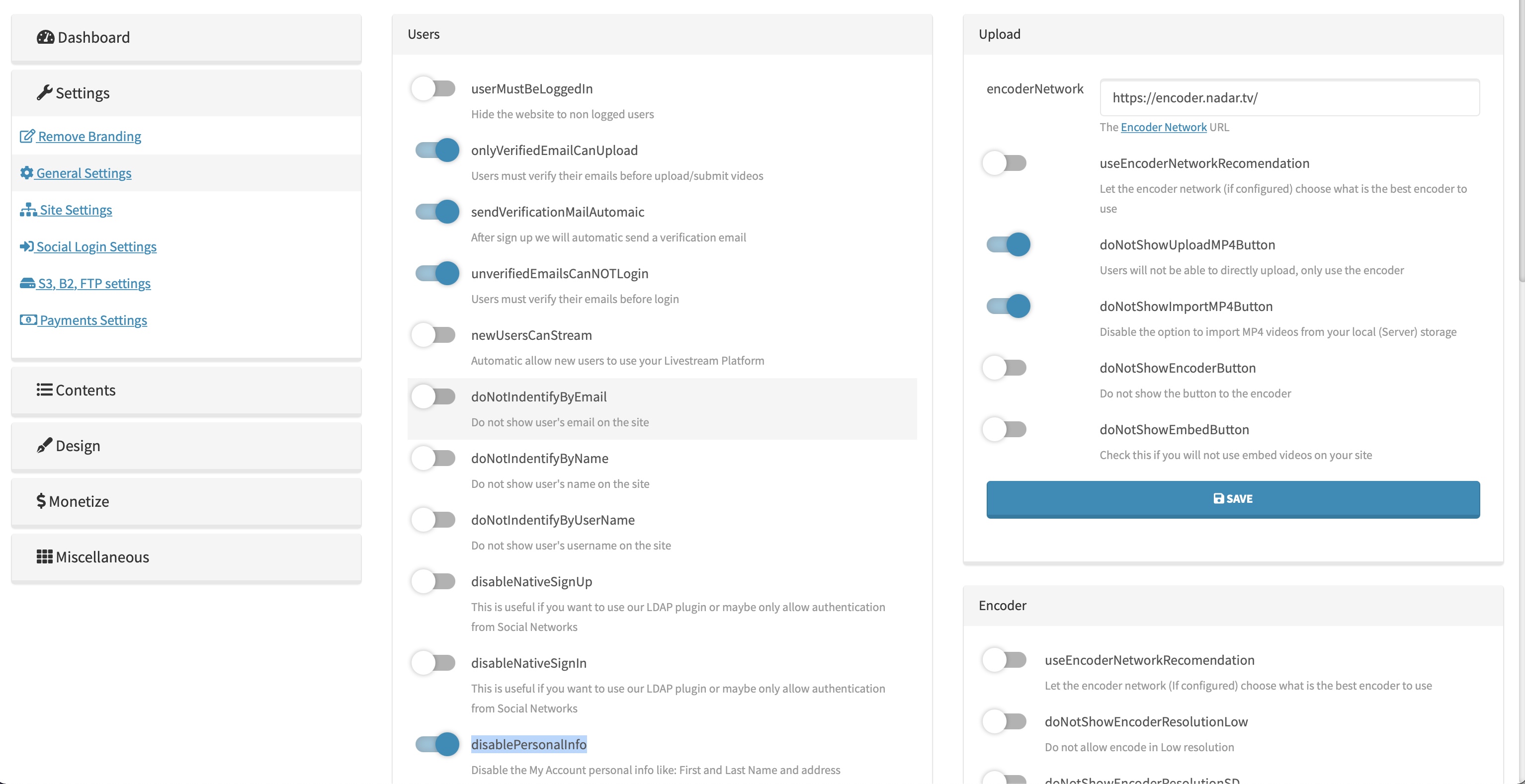
The administration left menu is grouped like this (menu item → what you find there):
- Dashboard — users, videos, recent activity, and server information.
-
Settings
- Remove Branding — hide/replace AVideo's own branding (core + CustomizeAdvanced options).
- General Settings — four panels: Users (sign-up/sign-in switches such as Users must verify their emails before login, Automatic allow new users to use your Livestream Platform), Upload (Do not show Direct upload/Import/Encoder/Embed button switches, the Encoder Network URL), Encoder, and Sign In/Up.
- Site Settings — site identity: title, description, language, time zone, and similar global values.
- Social Login Settings — one panel per provider: Facebook (LoginFacebook), Google (LoginGoogle), LinkedIn (LoginLinkedin), Twitter (LoginTwitter), Yahoo (LoginYahoo), and LDAP (LoginLDAP); see also Social Login Plugins.
- S3, B2, FTP settings — one panel per storage backend: S3 Storage (AWS_S3), B2 Storage (Blackblaze_B2), and FTP_Storage.
- Payments Settings — Wallet (YPTWallet) and PayPal (PayPalYPT) panels; other gateways such as Stripe, AuthorizeNet, BTCPayments, and RazorPayYPT are enabled/configured from Miscellaneous > Plugins instead.
-
Contents
- Videos — the video manager (search, edit, change status, delete).
- Live Stuff — live-stream configuration; see Live-stream administration below.
- Users — the user list (create, edit, disable, make administrator).
- Users Groups — create/edit user groups used for content restriction and delegated permissions (Permissions Plugin).
- Categories — create/edit/reorder the categories offered on the Meta Data tab of the video form.
- Backup — see Backups below.
-
Design
- First Page Style — layout of the signed-out home page.
- Player Skin — the Video.js skin/controls used by the player.
- Themes — the overall Bootstrap theme.
- Colors — color palette values.
-
Monetize
- Site Advertisement with VAST Video ads — configure pre-roll/mid-roll ad tags (see the AD_Server family of plugins).
- Pay User per Video View — MonetizeUsers-style payout per view.
- Create Subscription Plans — site-wide paid plans (see Subscription Plugin).
-
Update Version — opens the in-browser updater (
/update/). -
Miscellaneous
- Plugins — install/enable/configure/reset every plugin; see Manage plugins below.
- Email All Users — send a message to your whole user base; see How to Send an Email to All Users.
- Health Check — a checklist of common server/configuration problems.
- FFmpeg Monitor — running FFmpeg/encoding processes on this server.
Dashboard totals are useful for orientation, but they are not a replacement for monitoring. A growing site should also monitor disk space, failed encoding jobs, email delivery, backups, and live-stream health.


Review these items before inviting users:
| Area | Where | Simple check |
|---|---|---|
| Address and identity | Settings > Site Settings | The HTTPS address, website title, language, and time zone are correct |
| Branding | Settings > Remove Branding | Logo/branding match your product |
| Email and sign-up rules | Settings > General Settings (Users/Sign In-Up panels) | A real test message reaches an inbox; email verification and login rules match your plan |
| Users | Contents > Users, Users Groups | Registration, upload, live-stream, and administrator permissions match your plan |
| Videos | Contents > Videos, Categories | Default status, categories, playback, and Encoder connection work |
| Growth | Settings > S3, B2, FTP settings | Storage has free-space monitoring; consider CDN Storage when you prefer managed capacity |
| Reliability | Contents > Backup | Backups are stored away from the live server and a restore plan exists |
| Automation | Scheduler Plugin | Scheduled tasks required by enabled plugins run successfully |
Follow the Quick Start Guide for the initial walkthrough.
Open Contents > Users to search, create, edit, enable/disable, or remove users according to your permissions. Contents > Users Groups manages the groups used for content restriction and for delegated admin permissions.
| Task | Simple path |
|---|---|
| Add an account | Admin > Contents > Users > Add New User; enter username, email, password, and the minimum required permissions; then save |
| Edit an account | Find the user, select the pencil/Edit control, make the change, and save |
| Temporarily block access | Edit the user and set the account to inactive when available |
| Reset a forgotten password | Use the normal password-reset process; do not ask the user for the old password |
| Make an administrator | Edit the user, enable Is Admin only for a fully trusted operator, and save |
| Create/edit a user group | Admin > Contents > Users Groups; add members and set the group's video-restriction/permission rules |
| Give limited admin tasks | Add the user to a group managed by the Permissions Plugin |
An account can be active without having upload or live-stream permission. Check the individual account, its user groups, and permission plugins when a menu is missing for only one user.
Use the least privilege needed. Do not grant full administrator access merely so someone can moderate content or perform one operational task. Review Users Permissions and the Permissions Plugin.
The Permissions plugin can create a role with only the administrator tasks that person needs.

Check:
- Correct username/email for this site
- Account is active
- Email verification or approval requirement
- Login plugin requirements such as LDAP, social login, OTP, or PGP
- Whether password recovery email works
- Relevant login-time error in the logs
Never ask a user to send their password. Use a reset workflow.
See Reset a Password for e-mail recovery and the server-side emergency method.
Before deletion, determine what happens to the user's videos, channel, comments, subscriptions, wallet/payment records, and affiliations. Deactivation is safer when records must be retained. Test the process on a non-production account if plugin behavior is uncertain.
Can a moderator approve videos without becoming a full administrator? Use a limited role or user group through the Permissions Plugin when supported by that task.
Why can an administrator see a page that another staff member cannot? The page may require full admin status, a plugin-specific permission, or membership in a particular user group. Compare those three items.
Open Contents > Videos (the video manager) to search and edit content, inspect status, correct metadata, change access, and identify missing files. Selecting a video's pencil/Edit icon opens the same tabbed form used by creators: Direct upload/Encode video and audio, Images, Meta Data, SEO, Privacy, and Advanced. From the video list toolbar you can also bulk-change Status, Category, or User Group for the checked videos.
| Status | Meaning | Chosen by |
|---|---|---|
| Active | Published and visible to users, following category/group rules | User, on the Privacy tab |
| Inactive | Hidden and not available to users | User, on the Privacy tab |
| Unlisted | Not listed publicly, but playable via direct link | User, on the Privacy tab |
| Unlisted but Searchable | Not listed while browsing, but found via search | User, on the Privacy tab |
| Scheduled Release Date | Hidden until the configured date/time, then automatically becomes Active | User, on the Privacy tab |
| Draft | Saved but not published | User, on the Privacy tab |
| Active and Encoding / Encoding | Published (or not yet) while the Encoder is still processing it | Automatic |
| Encoding Error | Encoding failed; the video is not available | Automatic |
| Downloading / Transferring | The file is being fetched from an external source or moved between servers/storage | Automatic |
| Recording | Currently being recorded from a live stream | Automatic |
| FansOnly | Restricted to subscribers of the FansSubscriptions plugin | Automatic, when that plugin is enabled |
| Broken Missing files | One or more expected media files are absent; see Broken/Missing Files | Automatic |
| Unpublished | Not published and not visible to users | Administrator |
- Open Admin > Contents > Videos and find the video.
- Preview it when review is required.
- Select Edit (pencil icon) to open the tabbed form; correct Meta Data (title/category/description), Images (posters), SEO (clean title), or Privacy (status, password, user groups, download/share).
- Set Video Status to Active (or use the toolbar's Status button for several videos at once) only after the content and files are ready.
- Save, then test its direct URL as a normal viewer.
Review, in this order:
- Encoding/job status
- Video status and broken/missing-files indicator
- Release date/time and server time zone
- User-group or login restrictions (Privacy tab)
- Category restrictions
- Video password (Privacy tab) or paid-access plugins such as FansSubscriptions or PayPerView
- Whether the viewer is testing a direct link or only the home page
See Video Statuses and Video Privacy.
Metadata edits normally do not re-encode media. Deletion may remove files permanently and may also affect playlists, reports, or external storage. Use inactive status when temporary removal is enough, and back up important media before destructive actions.
Do not change the status just to hide the warning. Confirm which expected file is absent and whether storage, encoding, migration, or manual deletion caused it. See Broken/Missing Files.
Open Miscellaneous > Plugins to manage every plugin. Plugins add features and may add database tables, scheduled jobs, external services, permissions, or paid licenses.
- Read the plugin page and prerequisites.
- Back up before installing or resetting a plugin that stores data.
- Install/update from the trusted source.
- Run the plugin's table/install action when instructed.
- Enable it.
- Configure required values.
- Test with an ordinary user.
- Check scheduled tasks and logs.
Do not enable every plugin. If a feature fails, identify its dependency before resetting it. Reset can erase configuration and may affect plugin data.
See the Plugin Documentation Index, Install a Plugin, and Reset a Plugin.
| Action | What it does | Important detail |
|---|---|---|
| Install | Adds the plugin files | It may also need a license, database tables, or another plugin |
| Enable | Turns the feature on | Enabling is not the same as completing configuration |
| Configure | Saves the feature's options and credentials | Test with a normal user after saving |
| Disable | Stops the plugin from providing its feature | Data and settings normally remain, but confirm on the plugin page |
| Reset | Recreates or clears plugin state | It can erase configuration or data; back up first |
| Goal | Plugins/services to consider | Business advantage |
|---|---|---|
| Faster delivery to a large audience | CDN | Adds edge delivery so one origin server does not handle every media request |
| More video space | CDN Storage | Adds managed remote storage and optional regional replication |
| Live events | Live, Rebroadcaster, and Record Live Stream | Broadcast, distribute, and reuse live content |
| Branded design | Customize, CustomizeAdvanced, and Layout | Makes the service look like your own product |
| Notifications | Notifications, User Notifications, and Notification Integrations | Brings viewers back when new content or events are available |
| Monetization | See How to Make Money | Combines advertising, subscriptions, pay-per-view, promotion, and payment options |
The Encoder is separate from the main website even when both run on one server.
For a healthy workflow:
- The Encoder can reach the public AVideo URL over HTTPS.
- AVideo accepts the Encoder credentials/token.
- Both systems have free disk space.
- FFmpeg and required tools are available to the Encoder.
- Output profiles match the desired resolutions/formats.
- Server time is reasonably synchronized.
When an upload fails, decide whether it failed in browser upload, Encoder queue, FFmpeg processing, or transfer back to AVideo. Each stage has a different log.
See About Video Upload and Encoder Connection Error.
- Sign in as a normal user with upload permission.
- Upload a short video through the recommended Encode video and audio option.
- Confirm that it appears in the Encoder queue.
- Wait for the job to finish and return to AVideo.
- Confirm that a thumbnail appears and the video plays while signed out if it is public.
| Where it stops | Most likely area to inspect |
|---|---|
| Browser never finishes sending the file | Browser network, upload limit, proxy, or PHP request size/time |
| Job never enters the queue | AVideo-to-Encoder URL, credentials, HTTPS/DNS, or firewall |
| Job enters the queue but fails | Encoder log, FFmpeg, source file, free disk, or output profile |
| Encoding finishes but AVideo receives nothing | Encoder-to-AVideo HTTPS, credentials, permissions, or storage destination |
| Video returns but does not play | Generated files, codec/playlist, web server, storage, CDN, or browser request error |
Open Contents > Live Stuff to configure live-stream options and manage current/scheduled live events. Enabling the Live plugin does not install or configure an RTMP server. Verify the live server separately, protect stream keys, monitor /HLS or equivalent temporary storage, and test with a normal viewer over HTTPS. See also Rebroadcaster to relay a live event to another destination and Record Live Stream to keep the recording as an on-demand video afterward.
For incidents, distinguish:
- Broadcaster cannot connect
- Server receives the stream but creates no output
- AVideo does not show the live event
- Player cannot request the HLS playlist/segments
- Playback works locally but not through firewall/CDN/HTTPS
See Live Plugin and Live Troubleshooting.
Password resets and many notifications need working SMTP. Some notifications, cleanup, releases, and plugin actions also need Scheduler/cron execution.
After saving email settings, send a real test and check delivery. After configuring Scheduler, confirm its last-run or log activity; creating a cron line does not prove it executes successfully.
See Email Setup, Notification Guide, and Scheduler Plugin.
When a setting appears unchanged:
- Save and confirm there was no error.
- Clear AVideo/plugin cache from the interface.
- Reload without browser cache.
- Test in a private window.
- Check whether a theme or custom CSS/JavaScript overrides it.
Avoid manually deleting broad directories. Use the application's clear-cache control unless a troubleshooting guide identifies an exact cache path.
| Change | Where to start | Check after saving |
|---|---|---|
| Website name/title, language, time zone | Settings > Site Settings | Browser title, header, emails, and mobile view |
| Branding/logo removal | Settings > Remove Branding (CustomizeAdvanced) | Light/dark backgrounds and small screens |
| Home-page layout | Design > First Page Style | Signed-out home page and mobile layout |
| Player appearance | Design > Player Skin | Player controls on desktop and mobile |
| Overall theme | Design > Themes | Login page, player page, menus |
| Color palette | Design > Colors | Contrast/accessibility across pages |
| Custom CSS/JavaScript | Customize or CustomizeAdvanced plugin settings | Login page, player page, menus, and accessibility/contrast |
| Home-page section arrangement | Layout plugin, Gallery, or the active theme | Signed-out home page and mobile layout |
| Netflix-style presentation | Netflix Clone Page | Categories, images, and navigation on television/mobile screens |
The original guide used 200 x 50 pixels as a simple starting point for a horizontal logo. The active theme may show a different preferred size, so use the dimensions displayed in your own settings when available.
Back up the database and files, then run git pull in the Streamer and Encoder checkouts. If tracked local modifications block the pull, use the documented git fetch --all and git reset --hard origin/master procedure to discard them and restore the official files. Afterward, install any database and plugin updates and test critical features.
See Update AVideo Safely for the commands and complete sequence.
A complete recovery plan includes the database, videos/configuration.php, media wherever it is stored, custom/paid plugins and themes, and relevant server/Encoder configuration. Copy backups off the live server and test restoration.
See Back Up and Restore AVideo.
Capture:
- Exact action and time
- Affected user/video/plugin
- Expected and actual result
- Browser console/network error for front-end failures
- AVideo, Apache, Encoder, live-server, database, or Scheduler log relevant to that action
Sanitize all logs. Remove passwords, database credentials, API keys, payment secrets, cookies, authorization headers, stream keys, and personal data.
See How to Find Errors.
| Item | Common example | Important note |
|---|---|---|
| AVideo application log | /var/www/html/AVideo/videos/avideo.log |
Your AVideo directory may be elsewhere; sanitize secrets before sharing lines |
| AVideo cache | /var/www/html/AVideo/videos/cache/ |
Use the supported clear-cache control before deleting files manually |
| Encoder application URL | https://video.example.com/AVideo-Encoder/ |
Use the exact installed URL and final subfolder/slash |
| Encoder application log | The Encoder's own videos/avideo.log
|
It is separate from the main AVideo log even on the same server |
Paths in Docker, hosting panels, or custom installations can differ. Read the active configuration and logs instead of assuming the example path exists.
| Task | Where to start |
|---|---|
| Add or edit a user | Admin > Contents > Users |
| Create/edit a user group | Admin > Contents > Users Groups |
| Approve or edit a video | Admin > Contents > Videos |
| Install or enable a plugin | Admin > Miscellaneous > Plugins |
| Change logo/colors/layout | Admin > Design plus Customize/Layout plugins |
| Clear application cache | The supported cache control in Admin or the Cache Plugin |
| Send a test email | Admin > Settings > General Settings (Users/Sign In-Up panels) |
| Check an upload | Admin > Contents > Videos plus Encoder queue/log |
| Check a live event | Admin > Contents > Live Stuff, generated HLS files, then viewer playback |
| Update the platform | Update AVideo Safely |
| Create a recoverable backup | Admin > Contents > Backup, see Back Up and Restore |
Confirm that saving produced no error, clear the supported application cache, reload without browser cache, and check whether the active theme or custom CSS/JavaScript overrides the setting.
Menu items depend on full-admin status, delegated permissions, enabled plugins, theme, and screen size. Compare the same page with a full administrator account before changing files.
No. Enable the features your service needs. Each active plugin can add settings, dependencies, scheduled work, and update responsibilities.
Do not use deletion as the first test. Identify the exact failure, make a backup, and use the application's supported clear, deactivate, or reset action only when its documentation calls for it.
Web playback and outgoing email are separate systems. Send a test message, verify SMTP credentials and sender address, then review the mail error without exposing the password.
Ask for the page URL, content ID/title, exact time, browser/device, exact visible message, and a screenshot with private information hidden. Never ask for passwords, cookies, stream keys, API keys, payment details, or database credentials.
- Monitor site availability, HTTPS, disk space, queue failures, and live/storage health.
- Confirm critical scheduled tasks run.
- Review failed uploads, broken media, suspicious login/activity, and backup completion.
- Test a public video and critical user journey.
- Create and copy a backup off-server.
- Record versions and current settings.
- Plan rollback and a maintenance window.
For quick answers, use the Frequently Asked Questions.


