A fast, feature-rich CSV/TSV editor for Visual Studio Code. Opens CSV files in a sortable, filterable, editable grid — right inside your editor, no external tools needed.
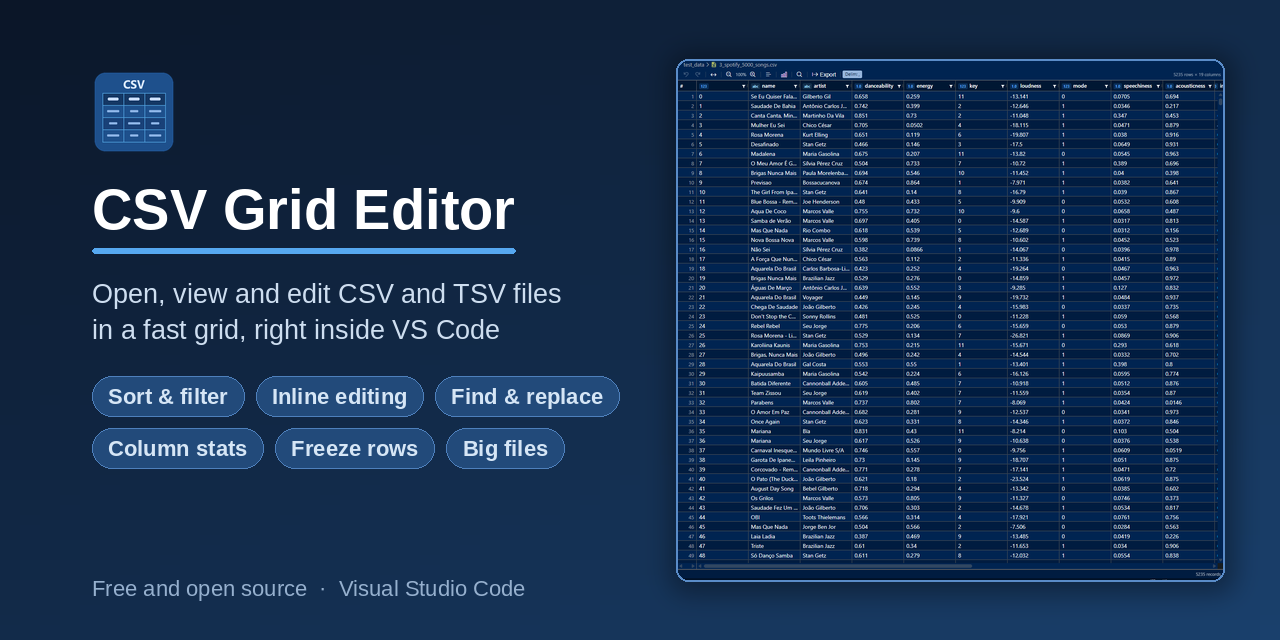
- Read messy CSVs without counting commas, every column lines up in a real grid
- Edit and save right in VS Code, no need to launch Excel or a separate app
- Copy any range straight into Excel or Google Sheets as tab-separated values
- Understand a column at a glance with built-in stats like median, null percent and distinct counts
- Stay fast on big files with head, tail and paged views for 50 MB and beyond
- Data analysts eyeballing exports and query results
- Developers editing fixtures, seed data and test CSVs
- Anyone who opens a CSV and does not want to launch a spreadsheet app
- Install CSV Grid Editor from the Marketplace
- Open any
.csvor.tsvfile, it opens as a grid automatically - Double-click a cell to edit, then save with
Ctrl+S
For files larger than 10 MB you get a quick menu to open the full file, preview the head or tail, browse in pages or open as plain text.
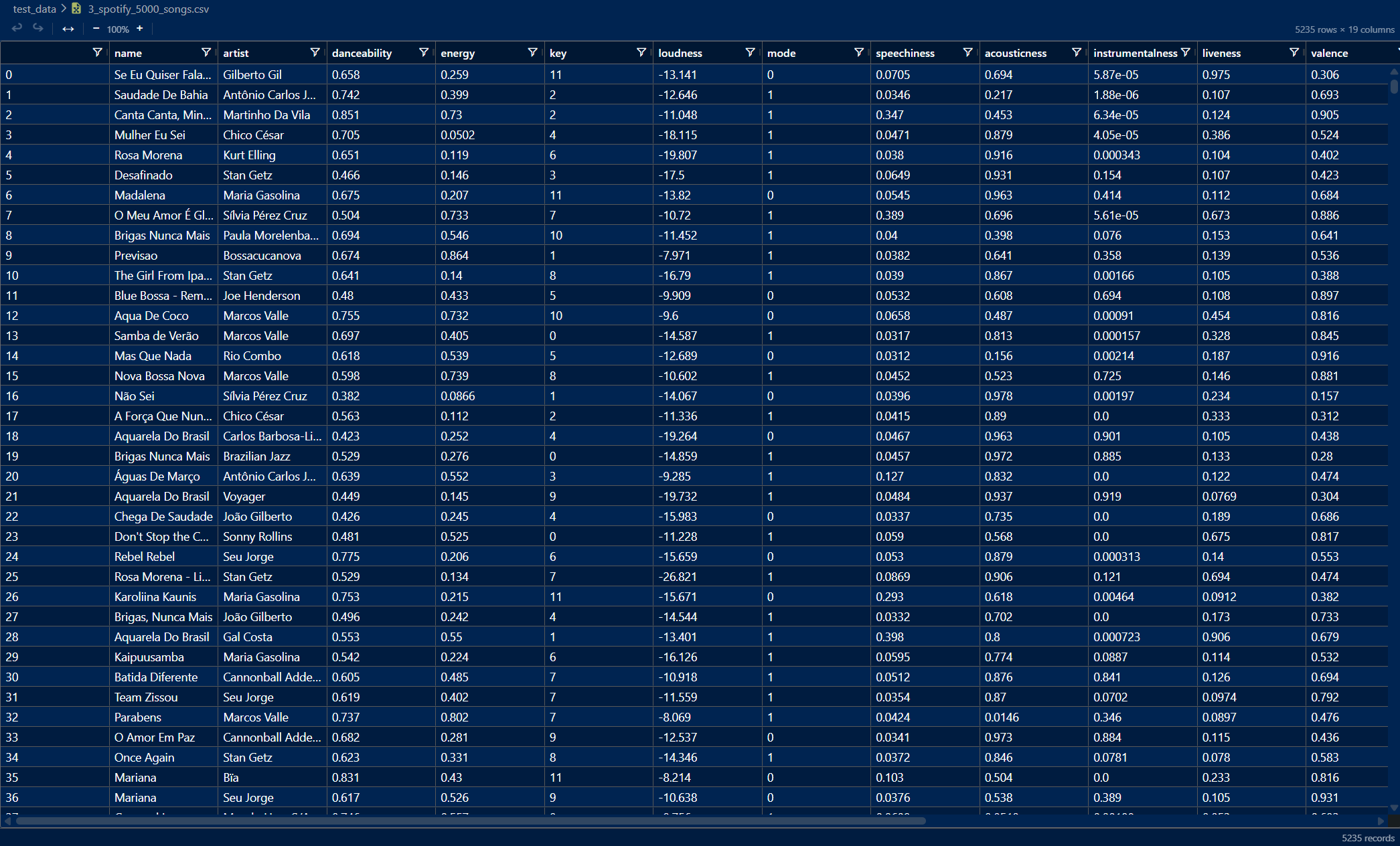
- Interactive Grid - Powered by AG Grid with alternating row colors and grid lines
- Column Type Detection - Each column header shows a type badge (Integer, Float, Text, Boolean, Date, DateTime, Time) inferred from the column's values. The type updates automatically whenever the data changes, whether from cell edits, find and replace or undo and redo.
- Sort & Filter - Click any column header to sort. Use the filter icon to search within a column. Active filters show in the toolbar with a one-click clear button.
- Auto-Fit Columns - Fit all columns to their content with one click. Double-click a resize handle to auto-fit a single column.
- Column Resize - Drag column borders to adjust width manually
- Zoom - Scale the whole grid from 60% to 200% with the toolbar buttons or keyboard shortcuts. The zoom level shows in the toolbar.
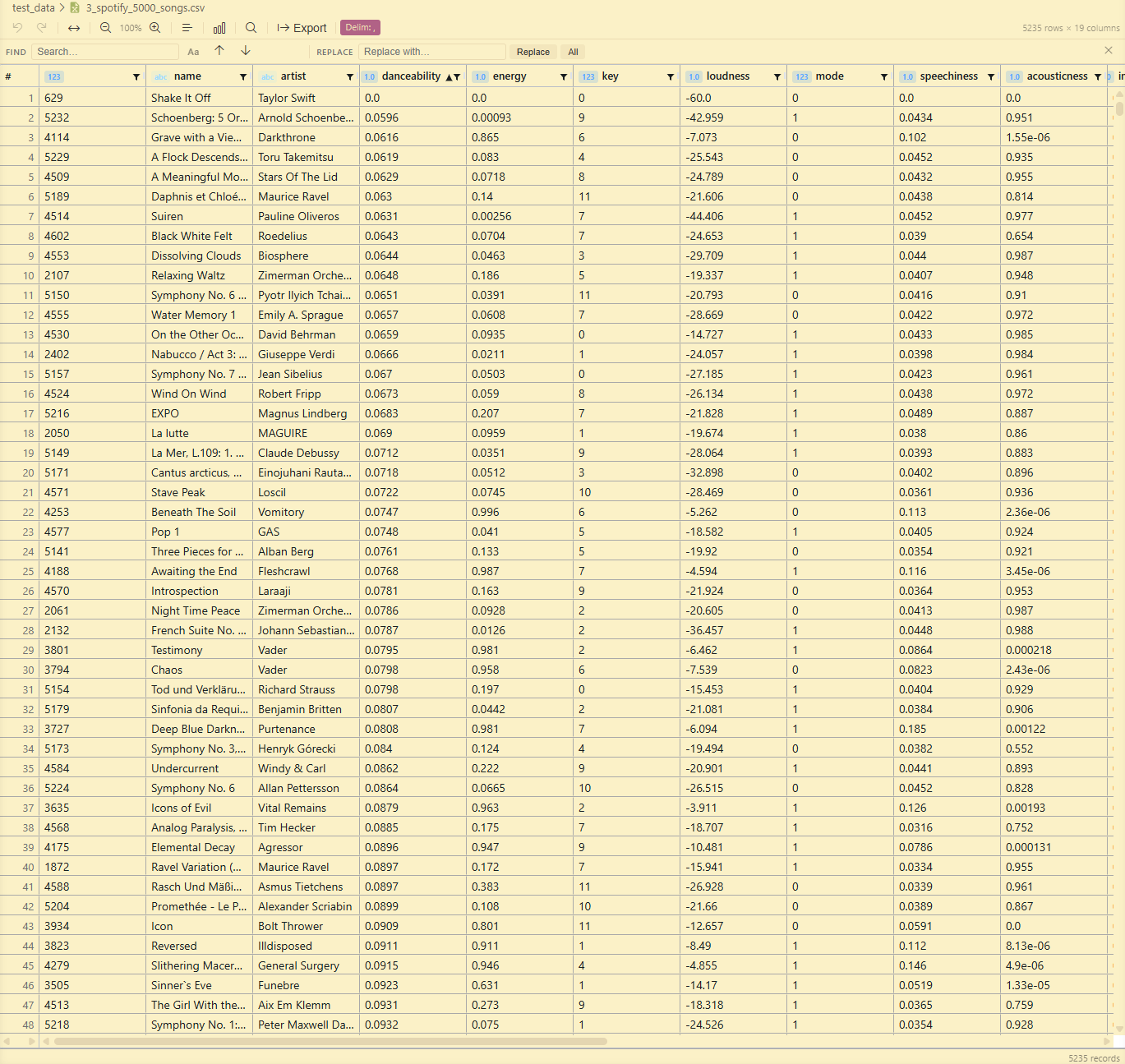
- Theme Integration - Automatically adapts to your VS Code color theme (dark or light)

- Inline Editing - Double-click any cell to edit its value inline. Changes are tracked and saved back to the file. Press
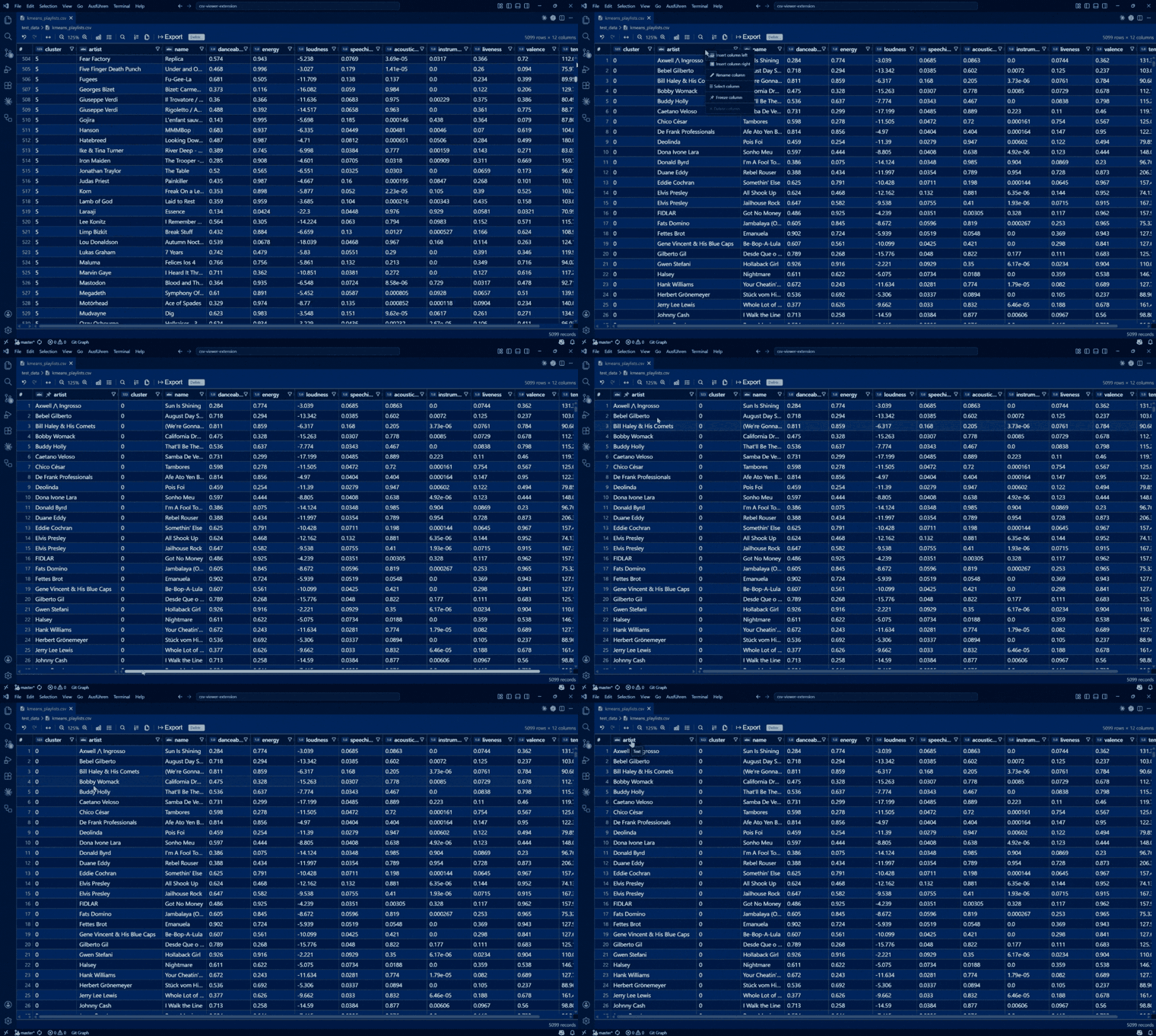
Enterto commit and jump to the cell below in the same column, the same as Excel and Google Sheets, so you can type down a column quickly. - Insert & Delete rows and columns - Right-click a row to insert above or below or to delete it, and right-click a column header to insert left or right or to delete. Select several rows (drag or
Shift+click the#gutter) or several columns (Shift+click the headers) first to insert or delete that many at once, anchored to the selection edge, just like a spreadsheet. - Undo / Redo - Full multi-step undo and redo stack (
Ctrl+Z/Ctrl+Y) - Save / Save As - Uses VS Code's native save mechanism and supports Save As to a new location
- Find & Replace bar (
Ctrl+F/Ctrl+H/ toolbar icon) - Always shows find and replace together in one bar - Search - Matches are highlighted across all visible cells. A counter shows the current position (for example
3 / 47). - Case-Sensitive Toggle - Enable exact case matching with the
Aabutton - Navigation - Jump between matches with the toolbar buttons,
Enter(next) orShift+Enter(previous) - Replace - Replace the current match or all matches at once. Only the matched substring is replaced, leaving the rest of the cell value intact, and it integrates with the undo stack.
- Cell Copy - Click a cell to focus it, then
Ctrl+Ccopies its full value to the clipboard - Range Selection - Excel-style selection directly in the grid:
- Click and drag to select a rectangular cell range
- Click and drag the row-number (
#) column to select whole rows Shift+click a column header to select a whole column or a run of adjacent columns- Right-click a column header → Select column to select a whole column
Shift+clickandShift+arrow keys extend the selection,Ctrl+Aselects everythingCtrl+Ccopies the selection as tab-separated values (TSV) that paste straight into Excel or Google Sheets- Right-click → Copy with header to include the column headers in the copy
Delete/Backspaceclears every cell in the selection- The status bar shows the selection size plus live
Count / Sum / Avg / Min / Max
- Export as JSON - Convert the current filtered and sorted view to a JSON array of objects via the native VS Code save dialog. Column headers become the keys and numbers and booleans come out typed, while values that would lose information (IDs with leading zeros, very large numbers) stay strings.
- Export as JSON Lines - The same view as JSON Lines (NDJSON), one object per line, handy for streaming tools and data pipelines
- Export as Markdown table - The same view as a GitHub-flavored Markdown table, ready to paste into a README, issue or pull request
- Auto-Detection - Automatically detects commas, semicolons and tabs on open.
.tsvfiles always use tab. - Manual Override - Click the delimiter badge in the toolbar to change the delimiter on the fly (comma
,, semicolon;, tab, pipe|). The grid re-parses the file immediately.
- Freeze / Unfreeze - Right-click any column header to pin it to the left side of the grid, right-click again to unfreeze.
Shift+click several headers first to Freeze N columns at once. Frozen columns show a 📌 marker before the column name.
- Freeze / Unfreeze - Right-click any row and choose Freeze row to pin it to the top of the grid as an always-visible reference while you scroll, sort and filter. Select several rows first (drag or
Shift+click the#gutter) and choose Freeze N rows to pin them all at once, handy for multi-line headers. Freezing is additive and the rows stay in the order you froze them. Right-click a pinned row to Unfreeze just that one, or Unfreeze all rows. A 📌 marker on each pinned row shows its original row number, and pinned rows stay visible regardless of any active filter.
- Rename - Right-click a column header → Rename column to rename it. The new name is written to the CSV header row and is fully undoable.
- Column chooser - Click the checklist icon in the toolbar to open a list of all columns with checkboxes. Uncheck a column to hide it, re-check to show it, or Show all to reset. A view aid, hidden columns are still included on export.
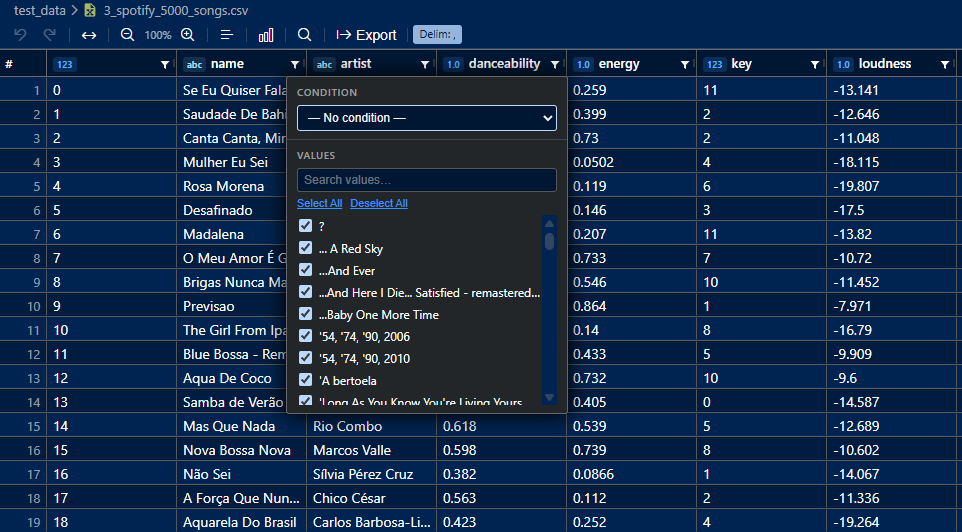
Click any column header to sort ascending or descending. Use the filter icon in the column header to open a per-column filter panel. Active filters are shown in the toolbar, click the Filters badge to clear them all at once.
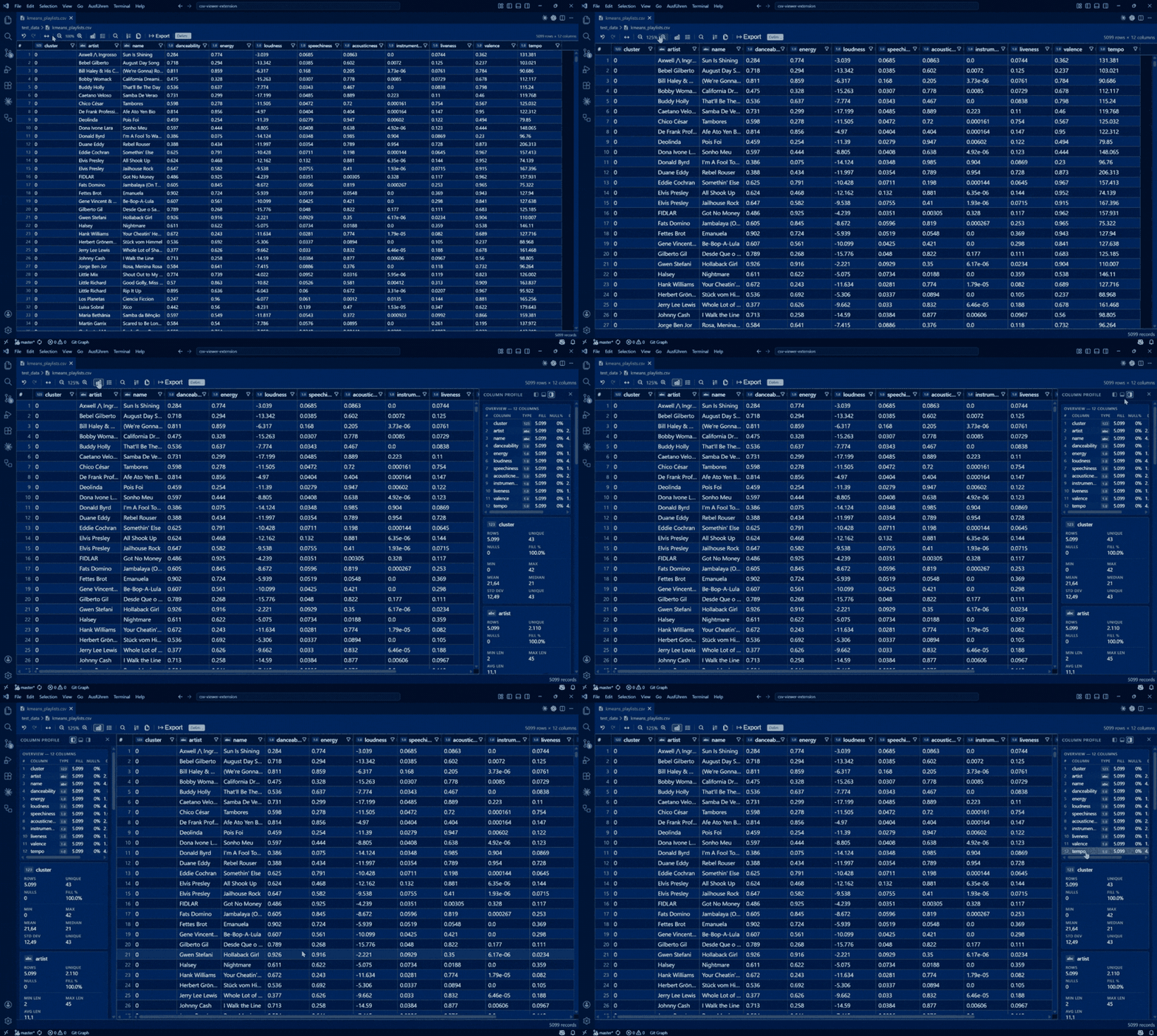
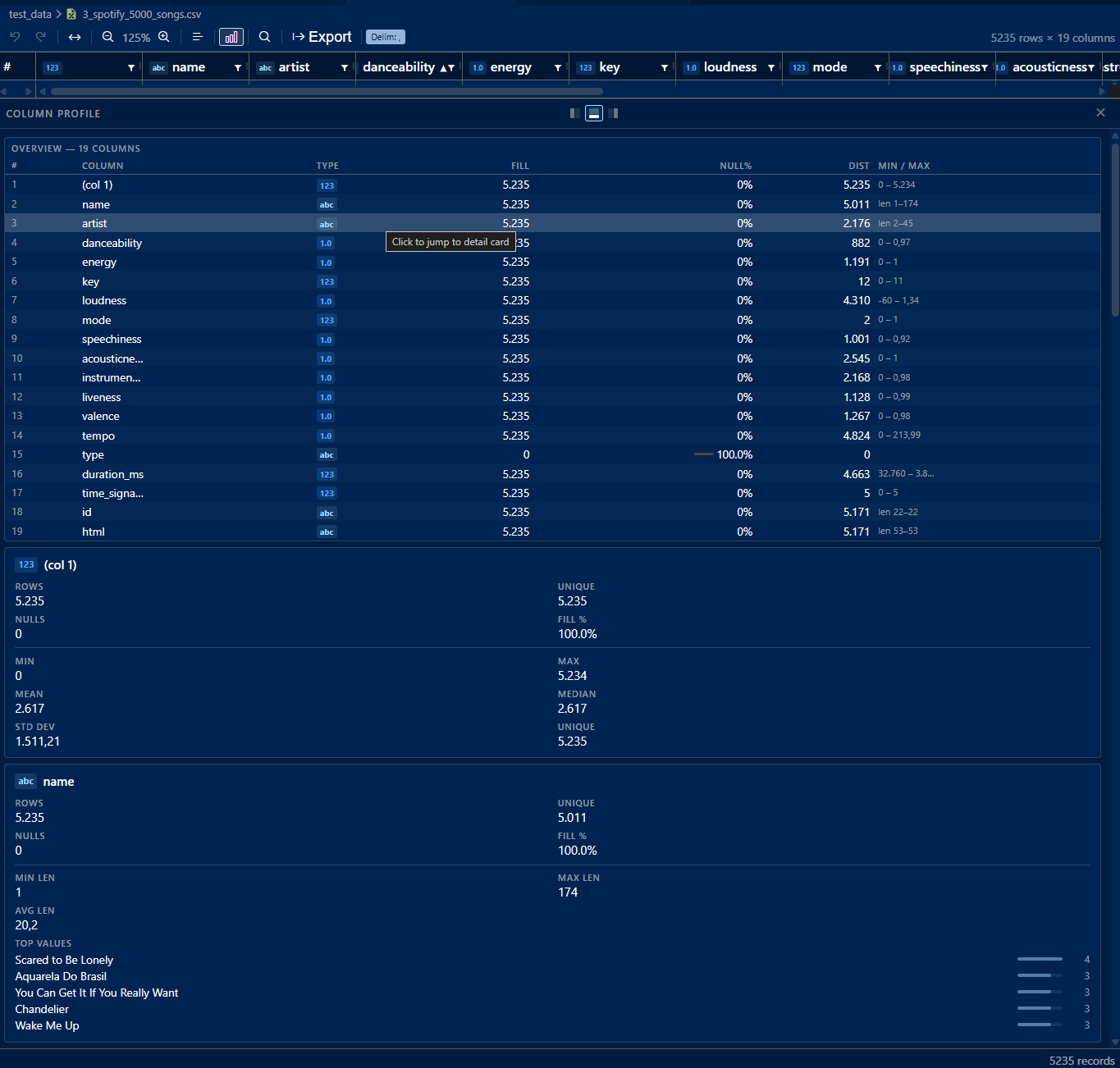
- Click the graph icon in the toolbar to open the Column Profile panel
- Shows an overview table across all columns: type, fill rate, null %, distinct value count and min/max summary
- Click any row in the overview table to jump to its detail card
- Each column gets a detail card with statistics based on its detected type:
- Integer / Float - min, max, mean, median, standard deviation, unique count
- String - min, max and average length, top 5 most frequent values with frequency bars
- Boolean - true/false count and percentage, with a visual bar chart
- Date / DateTime - earliest date, latest date, range in days
- All types show total rows, unique count, null count and fill %
- Dockable - Dock the panel to the right (default), left or bottom of the grid
- Resizable - Drag the panel border to adjust its size
- Zoom-aware - Panel text and spacing scale with the grid's zoom level (60 to 200%)
- Live Updates - The panel re-renders automatically as the data changes, including cell edits, inserts, deletes, paste and undo
The extension automatically adapts to your VS Code color theme, no configuration required.
| Dark Theme | Light Theme |
|---|---|
|
 |
Opening a file larger than 10 MB shows a Quick Pick with these options:
| Option | Description |
|---|---|
| Open Full File | Load all data into the grid (may be slow for very large files) |
| Show Head | Preview the first 1,000 rows |
| Show Tail | Preview the last 1,000 rows |
| Open as Plain Text | Fast read-only raw text view |
| Paged View | Browse in 500-row pages (only shown for files > 50 MB) |
- Head / Tail previews show a banner with the total row count and how many rows are displayed
- Paged View - A pagination bar (first / previous / next / last) lets you navigate pages efficiently without loading the entire file into memory. Editing is disabled in this mode.
- Plain Text View - Displays the raw file content in a monospace editor-style view without any grid features
When a file is open in full (non-preview) mode, the editor watches the file on disk and automatically reloads the grid when the file is modified externally.
| Extension | Default Delimiter |
|---|---|
.csv |
Auto-detected (, ; \t) |
.tsv |
Tab |
| Shortcut | Action |
|---|---|
Ctrl+Z |
Undo |
Ctrl+Y |
Redo |
Ctrl+Shift+Z |
Redo (alternative) |
Ctrl+C |
Copy focused cell or selected range (TSV) |
Ctrl+A |
Select all cells |
Shift+arrows |
Extend the selection |
Delete / Backspace |
Clear the selected cells |
Ctrl++ / Ctrl+= |
Zoom in |
Ctrl+- |
Zoom out |
Ctrl+F / Ctrl+H |
Open Find & Replace bar |
Enter |
Next match (in Find bar) |
Shift+Enter |
Previous match (in Find bar) |
Esc |
Close Find bar |
On macOS,
Ctrlis replaced by⌘.
A quick honest look at the common ways people open CSV files in VS Code.
| Capability | Plain text view | Rainbow CSV | Edit csv | CSV Grid Editor |
|---|---|---|---|---|
| Opens as an interactive grid | no | no | yes | yes |
| Edit cells inline and save back | no | no | yes | yes |
| Sort and filter from the column header | no | query only | sort only | yes |
| Column profiling (median, null %, distinct) | no | no | basic stats | yes |
| Freeze rows and columns | no | header only | yes | yes |
| Large files (head, tail, paged 50 MB+) | raw text | workaround | no | yes |
| Excel-style range copy as TSV | no | no | not documented | yes |
Checked June 2026 from each extension's Marketplace page, README and changelog. Rainbow CSV and Edit csv are both excellent tools, this table just shows where CSV Grid Editor puts its focus.
Install CSV Grid Editor and open any .csv or .tsv file. It opens straight into the grid, no command or setup needed. If another editor is set as the default, right-click the file and choose Open With then CSV Grid Editor.
Double-click any cell to edit it inline, then save with Ctrl+S. Changes are written back to the file and you can undo with Ctrl+Z. You never have to leave the editor or open a spreadsheet app.
Yes. Select a range with click and drag, press Ctrl+C, and the cells are copied as tab-separated values that paste cleanly into Excel or Google Sheets. Right-click then Copy with header to include the column names.
Yes. The delimiter is auto-detected on open (comma, semicolon, tab), and .tsv files always use tab. You can also switch the delimiter by hand from the toolbar to comma, semicolon, tab or pipe.
Yes. Files over 10 MB show a quick menu to open the full file, preview just the head or tail, browse in pages or open as plain text. Paged view lets you move through very large files without loading everything into memory.
If CSV Grid Editor saves you time, you can support its continued development, completely optional and always appreciated:


Robin Reiche