Home
- 1.1 Change menu size
- 1.2 Enable/Disable floating border
- 2.1 Enable Modern shutdown button
- 3.1 Use custom items as tiles
Fluent-Metro provides several ways to resize the menu how you like it. You can change the padding in between items, enable a compact right-hand list, or use small icons.
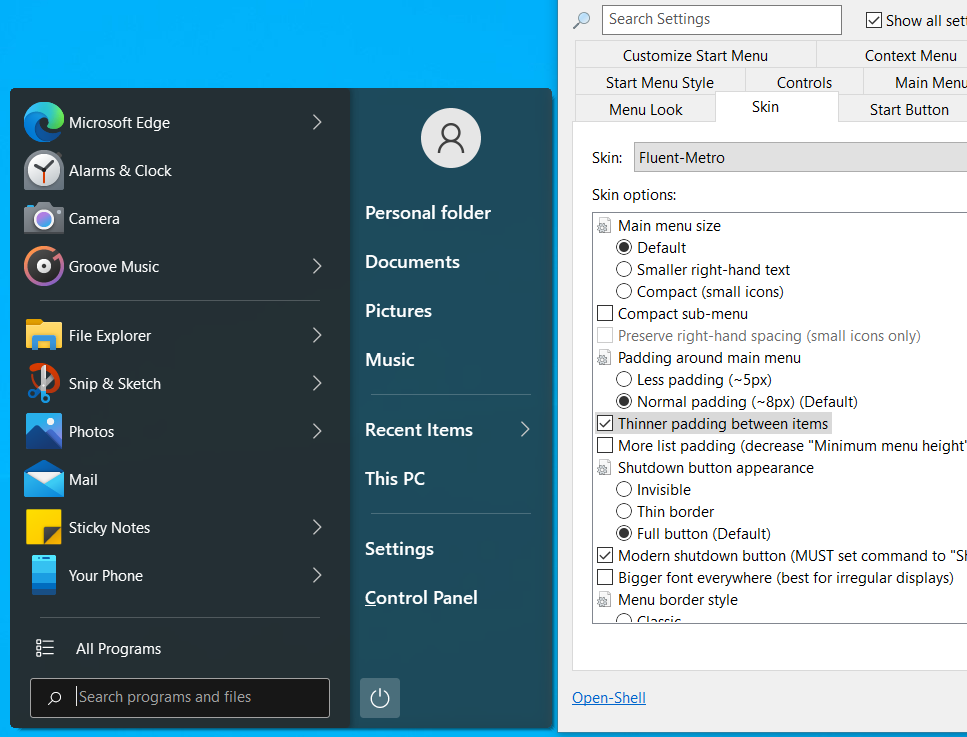
To decrease the padding between main menu items, enable Thinner padding between items as shown below. This will make the spacing more similar to classic menus in Windows.
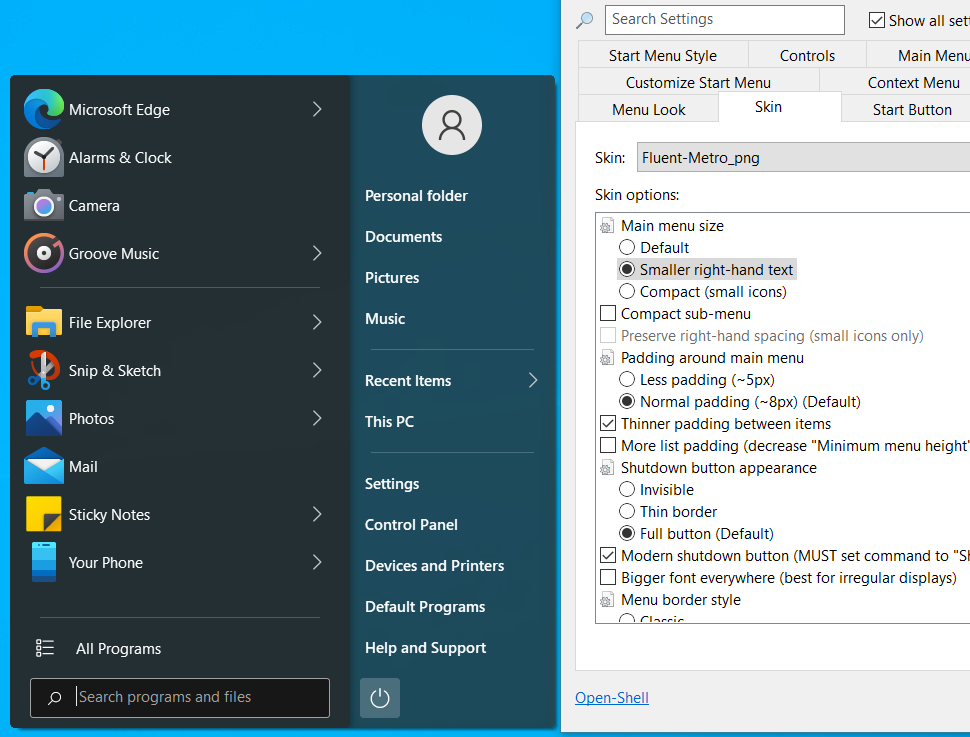
If the menu still looks too big for your preference, you can enable the Smaller right-hand text option under Main menu size. This may reduce the overall size of the menu if you have many items in the right-hand list.
Additionally, the Compact (small icons) option will decrease the size of the left-hand icons further, which may be helpful if you have a large amount of programs in your recent or pinned items lists.